
Shopify says your Meta Pixel is “Connected”. Green tick, all good. Then you open Events Manager and the Purchase event is empty. Or it says “No recent activity”. Or it shows page views and add to carts, but the one event that actually matters, the purchase, just isn’t there.
Meanwhile your ads keep spending. And without purchase data, Meta has no idea who your buyers are. It starts optimizing for the wrong people, your cost per sale climbs, and you can’t tell which ads are working.
The good news: this is almost always a settings problem, not a “rebuild everything” problem. In this guide I’ll walk you through exactly where the purchase event breaks and how to check each spot, in plain English.
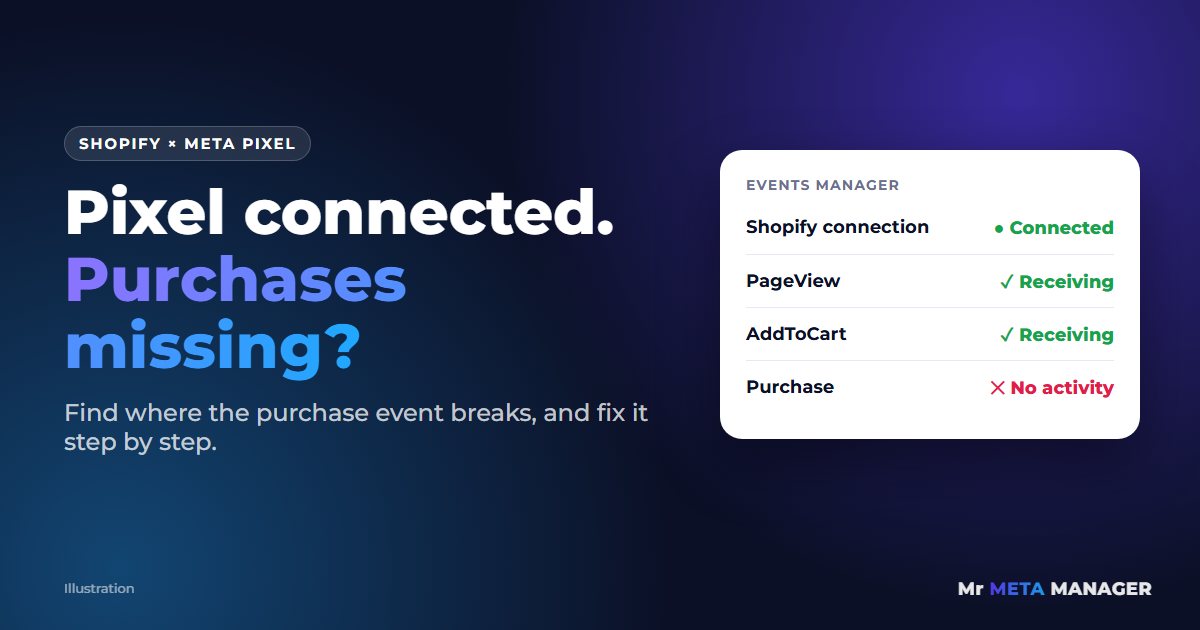
Why “Connected” doesn’t mean “working”
When Shopify says the pixel is connected, it only means the Facebook & Instagram app is linked to a Meta pixel (Meta now calls it a “dataset”). It doesn’t check that it’s the right pixel, that purchases are actually being sent, or that Meta is receiving them.
A purchase has to travel through a few steps before it shows up in Ads Manager. If any one of them breaks, the event disappears:
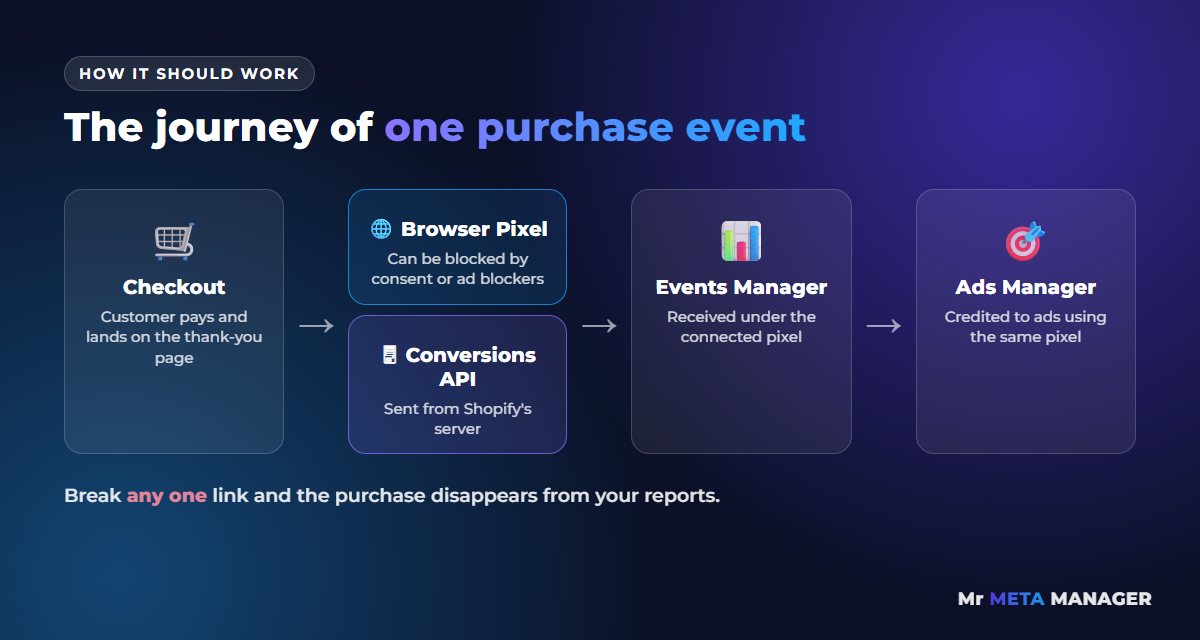
- A customer finishes checkout and lands on the thank-you page.
- Shopify fires the purchase from the browser (the Pixel) and, if it’s switched on, from Shopify’s server (the Conversions API).
- Meta receives it in Events Manager, under the pixel that’s connected.
- Ads Manager credits it to your ads, if your ad sets use that same pixel.
The 6 most common reasons the purchase event isn’t firing
After checking a lot of Shopify stores, these are the culprits I see again and again:
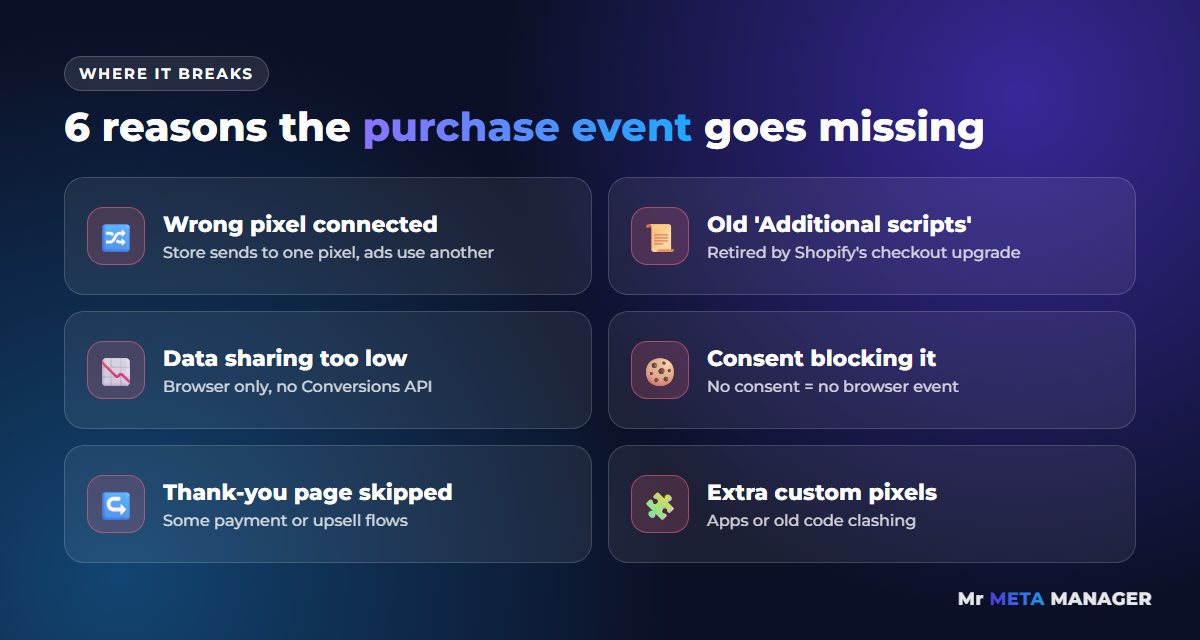
- The wrong pixel is connected. The store sends purchases to one pixel, but your ads are set up with a different one. Very common when an old agency or freelancer created their own.
- Old code from “Additional scripts”. Shopify has retired the old thank-you page scripts as part of its checkout upgrade. If your purchase tracking lived there, it quietly stopped working.
- Data sharing is too low. If the Facebook & Instagram app isn’t set to the highest data sharing level, you’re relying on the browser alone, and many purchases get lost.
- Cookie consent is blocking it. If your privacy settings say marketing tracking needs consent, visitors who ignore or decline the banner don’t send browser events.
- Customers never reach the thank-you page. Some payment methods and post-purchase upsell apps change the final page, so the browser event never gets a chance to fire.
- A custom pixel or app is broken or doubled. Extra custom pixels in Customer Events, or a second tracking app, can clash with the official setup.
Step-by-step: how to fix it
Go through these in order. Each step takes a few minutes, and most stores find the problem by step 3.
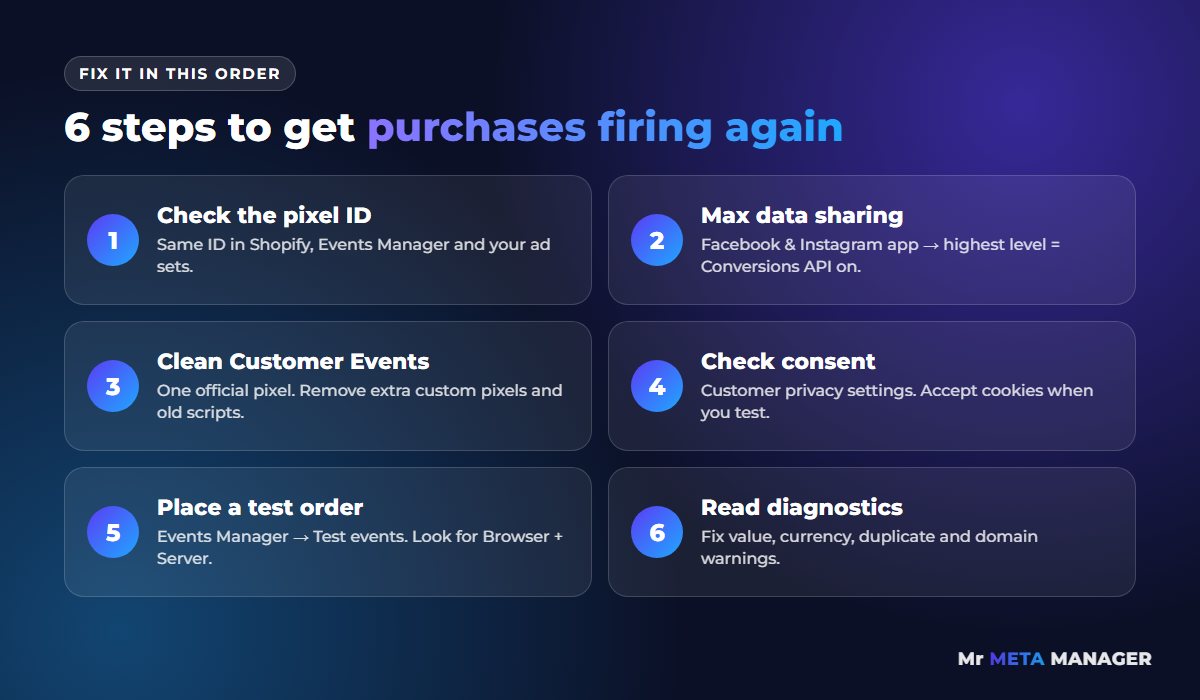
Step 1: Check you’re looking at the right pixel
In Shopify, open the Facebook & Instagram sales channel, go to its settings, and find the connected pixel/dataset. Write down the ID. Now open Meta Events Manager and check the ID there matches. Then open one of your ad sets in Ads Manager and check it’s tracking conversions with the same pixel. Three places, one ID.
Step 2: Set data sharing to the highest level
In the same Facebook & Instagram settings, find Data sharing. Choose the highest level your store offers (usually “Maximum”). This turns on the Conversions API, so Shopify sends the purchase from its own server too. Even if the browser event gets blocked, the server event still gets through.
Step 3: Clean up Customer Events
Go to Settings → Customer events in Shopify. You should see the Facebook & Instagram app pixel listed and connected. Look for any extra “custom pixels” that also send Meta events, especially ones added by old apps or developers. Also check Settings → Checkout for leftover “Additional scripts” with Meta code. You want one clean setup, not three overlapping ones.
Step 4: Check your cookie consent settings
Open Settings → Customer privacy. If you use a cookie banner, browser tracking only fires after the visitor accepts. That’s fine, and often legally required, but it’s another reason the Conversions API (step 2) matters so much. When you test, accept the cookies first so you’re not chasing a “problem” that is really your banner doing its job.
Step 5: Place a real test order
In Events Manager, open Test events, enter your store URL and open it from there. Add a cheap product to the cart and complete the checkout (you can refund it afterwards). Within a few minutes you should see Purchase arrive, ideally from both “Browser” and “Server”.
A quick heads-up: the Meta Pixel Helper Chrome extension often says “no pixel found” on Shopify checkout pages. That’s because Shopify runs pixels in a protected sandbox. It doesn’t mean tracking is broken. Trust Test Events over the extension.
Step 6: Read the diagnostics
Still in Events Manager, open the Diagnostics tab. Meta will flag issues like missing value or currency, duplicate events, or a domain problem. Fix anything marked important. Then give it a day: Ads Manager can take a while to catch up with Events Manager.
What your test result is telling you
Use this to match what you see in Events Manager with the most likely cause:
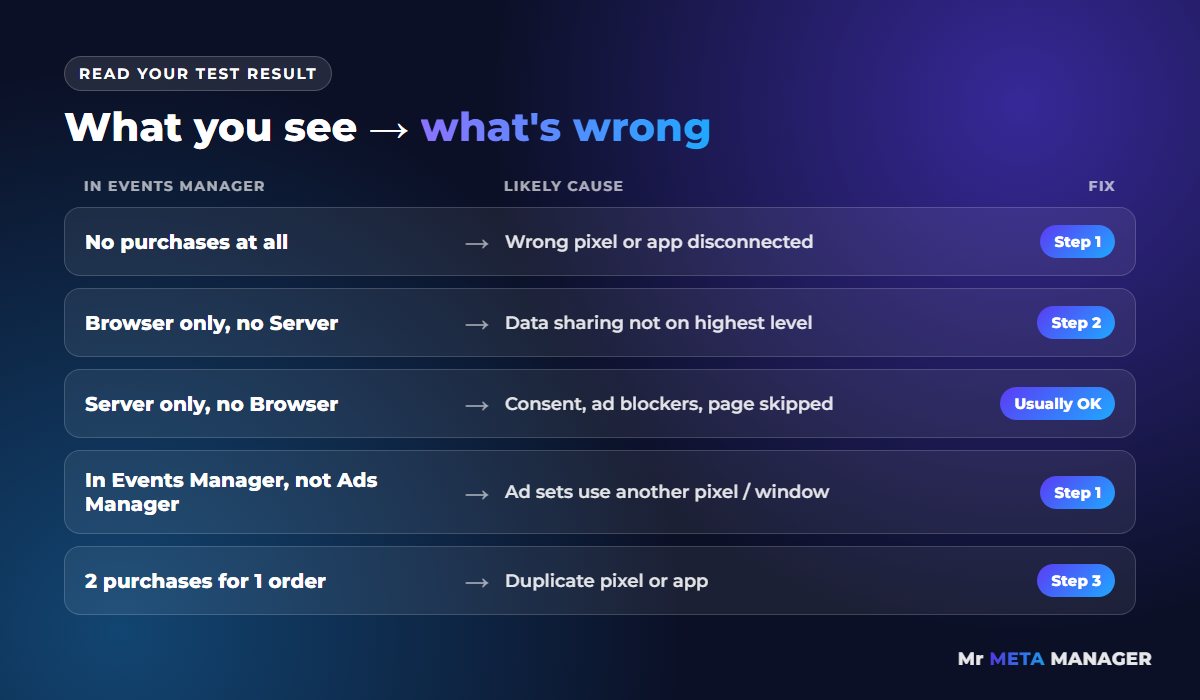
- No purchases at all: wrong pixel connected, or the app is disconnected. Go back to step 1.
- Browser purchases only, no server: data sharing isn’t on the highest level. Step 2.
- Server purchases only, no browser: usually consent, ad blockers or the thank-you page being skipped. Not a disaster if the server side works.
- Purchases in Events Manager but not in Ads Manager: your ad sets use a different pixel, or the sale fell outside the attribution window.
- Two purchases for one order: duplicate setup. Remove the extra pixel or app (step 3).
How we can help (and how easy it is)
I’ll be honest: this stuff is fiddly. Shopify and Meta both keep moving their settings around, and one wrong pixel ID can waste weeks of ad spend. That’s why tracking is the first thing we check on every account we take on.
For one Shopify brand, we rebuilt the Pixel and Conversions API setup first, then restructured the campaigns. Over 2024 that account produced about $453K in revenue from $113K in ad spend (4.0× ROAS), converted from SEK. Every store is different and we can’t promise the same numbers, but it all started with clean purchase tracking.
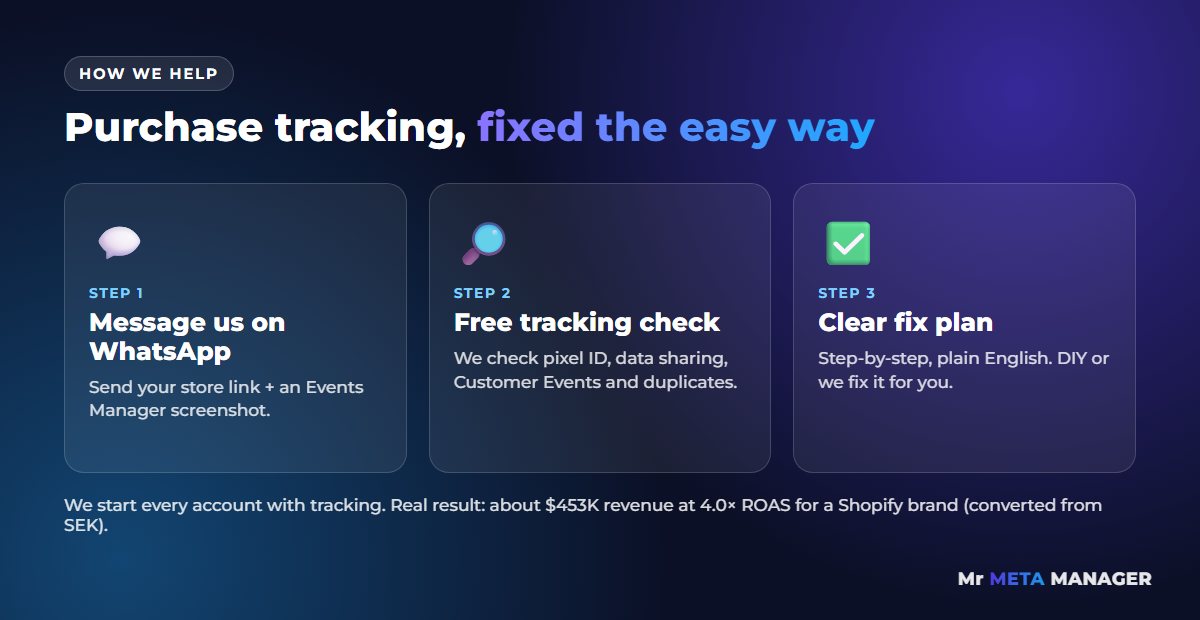
Getting started is simple:
- Message us on WhatsApp. Send your store link and a screenshot of your Events Manager.
- We do a free tracking check. We look at your pixel, data sharing, Customer Events and duplicates.
- You get a clear fix plan. Step by step, in plain English. Fix it yourself, or let us do it for you.
Don’t let Meta optimize blind
Every day without purchase data, Meta is guessing who your buyers are. Fix the purchase event first, and every ad you run after that gets smarter.
Send us a WhatsApp message and we’ll check your purchase tracking for free.
💬 Chat with us on WhatsApp now
Prefer email? help@mistermetamanager.com
Quick answers
Why does Shopify say my Meta Pixel is connected but no purchases show up?
“Connected” only means the Facebook & Instagram app is linked to a pixel. The most common causes are the wrong pixel being connected, data sharing set too low, old tracking code in retired “Additional scripts”, or a cookie banner blocking browser events. Run a test order with Meta’s Test Events tool to see where it breaks.
Why does Meta Pixel Helper say no pixel found on my Shopify checkout?
Shopify runs tracking pixels inside a protected sandbox on checkout pages, so the Pixel Helper extension often can’t see them. That’s normal. Use Test Events in Meta Events Manager to check whether the purchase event really arrives.
How long does it take for purchases to show in Events Manager?
Test events usually appear within a few minutes. Regular events and Ads Manager reporting can take longer, sometimes up to a day. If nothing appears after a real test order, something in the setup is broken.
Do I need the Conversions API on Shopify?
Yes, for most stores. It sends purchases from Shopify’s server, so they still reach Meta when browsers block tracking. On Shopify you turn it on by setting data sharing to the highest level in the Facebook & Instagram app.
Related: Meta purchases not matching Shopify orders? · Facebook ads getting clicks but no sales? · Shopify conversion tracking setup · Meta Ads management for e-commerce